
AI YouTube Thumbnail Maker Create thumbnails for a higher click-through rate
Use PagePop AI to turn your video’s best hook into a thumbnail that gives viewers a reason to click. Start with a title, portrait, product photo, or video still. Explore layouts and styles, then mark the spots where you want to change the text, background, or colors.
See how creators put the hook on the cover
Explore real PagePop creations. See how reviews feature the product, makeovers show the contrast, and tutorials and vlogs put the result or key moment on the cover.

Northstar Studio YouTube Thumbnail
 Social Media Visual Designer
A portrait and interface details establish the tutorial topic.

 Create similar
Make thumbnails that give viewers a reason to click

Design for more clicks and views
A review can feature the product, a makeover can show the before and after, and a tutorial can lead with the finished result. Use a clear subject, color, and a short phrase to give viewers a reason to click.

Start with a title and skip the blank canvas
Give PagePop your title, draft, or key moment, and tell it what viewers should notice first. Explore covers for an upcoming video or give a published video a fresh thumbnail.

Put your face or product front and center
Upload a portrait, product photo, or video still and say which details to keep. A familiar face helps viewers recognize your channel, and your own images show what they can expect from the video.


Use references to carry your channel style forward
Upload a thumbnail you like or an earlier cover from your channel, and describe the colors, layout, or mood you want to keep. You can also try a realistic, illustrated, collage, or cinematic look for this video.


Compare looks and find a stronger hook
Try different layouts, colors, and text for the same video. Compare versions featuring a reaction, product detail, or finished result, then choose the one that best conveys the hook.

Mark what to change and switch styles
Mark a spot on the cover and tell PagePop which text to shorten, which background detail to adjust, or which element to add or remove. You can also try a different overall style.
What gives viewers a reason to click?

A clear hook
‘Real Test’ tells viewers they’ll see the camera put to the test.
An obvious subject
Putting the camera in the foreground makes the product easy to spot.
Short text and strong contrast
White text stands out against the dark background, with an orange line for emphasis.
Space and layout
The text sits on the left, with the face and camera on the right. Dark space gives each element room.
How to make a YouTube thumbnail that earns attention
Share the hook, compare thumbnail options, then mark edits and download.
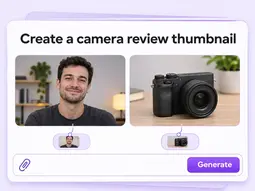
Share the hook and add images
Enter the video title and what you want to feature. Add a portrait, product photo, or video still, and describe the cover text, visual style, and 16:9 landscape layout.
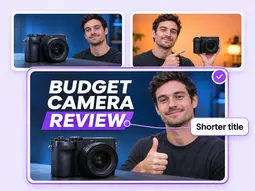
Compare looks and mark your edits
Try different subjects, colors, and layouts for the same video. Pick the version that conveys the hook best, mark what to change, and refine the text, background, or style.
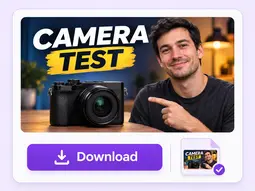
Download your cover for YouTube Studio
Preview and download your chosen cover. Check the image dimensions and file size, then set it as your video’s custom thumbnail in YouTube Studio.


Before you get started
What makes a YouTube thumbnail more likely to get clicked?
Lead with something viewers will actually see, such as the product under review, a finished result, or a before-and-after comparison. Use contrast and a simple layout to emphasize the subject, and make the words on the cover complement the video title.
Can I make a thumbnail before I finalize my title?
Yes. Start with a draft title, topic, or key scene. Compare a few visual directions before choosing the video title and cover text.
Should I put the full video title on the cover?
Use a short phrase to add context to the image. For a camera review, for example, use ‘Real Test’ on the cover and leave the full model name and topic in the video title.
Can I use my own portraits, product photos, and style references?
Yes. Upload portraits, product images, or video stills and say what to keep in the design. To carry your channel style forward, attach an earlier cover and point out the colors, layout, or mood you want to reuse.
Can I compare multiple looks and edit the results?
Yes. Ask PagePop to explore layouts, colors, and visual styles. Mark a spot on the selected image and describe the text, background, or element you want changed. You can also try a different overall style.
Can I replace the thumbnail for a published video?
Yes. Generate a new cover for the video, download it, and open the video in YouTube Studio. Upload the new thumbnail and save your changes.
How can I tell which thumbnail performs better?
Check impressions click-through rate and watch time in YouTube Analytics. Eligible channels can run thumbnail A/B tests for the same video in YouTube Studio on desktop. YouTube evaluates test results based on watch time.
What size should a YouTube thumbnail be?
For regular videos, YouTube recommends 3840 × 2160 pixels at 16:9, with a minimum width of 640 pixels. JPG and PNG are supported. Specify your target dimensions when generating and check the actual file before uploading.
How do I download a thumbnail and upload it to YouTube?
Open the finished image in PagePop and select download. Then upload it as a custom thumbnail in YouTube Studio. For regular videos, the upload limit is 2 MB on mobile and 50 MB on desktop.
Do I have to pay to generate thumbnails?
You can try it with any free credits available in your account. Credit use depends on the task. See PagePop pricing for details.
Explore more AI tools
Make more video and promotional content, edit your cover, or resize the image for upload.
- AI Image Editor
- Resize an image
- AI ecommerce design
- AI posters
- AI flyers
- AI PPT
- Instagram posts
- AI short dramas
- AI product videos
- AI interior design

Give viewers a reason to click your next video
Start with a title or your own images and explore different ways to show the hook. Mark what to refine and download the cover you want to use.