
AI Instagram Post Generator
Create Instagram images, multi-image carousels and captions from a topic or photo. Make launch posts and how-to guides, then refine the visuals and words through chat.
Instagram post examples made with PagePop
Explore a wide selection of curated examples for inspiration. Find a look you like, add your own content and assets, and start creating.
No cases yet.
From one image to a carousel and its caption


Make a single post from a topic or photo
Create an image for a product launch, event announcement or everyday post. Describe the subject, background, colors and short on-image headline. You can also upload an existing image and ask for changes.


Turn a checklist or how-to into a carousel
Provide the content and order for each image to create a cover and separate follow-up images. Build a checklist, tutorial or gift guide, and request the same colors, aspect ratio and visual style throughout.
One small habit at a time. Swipe through five simple ways to reset your day, from a phone-free morning to a calmer evening. Save this for your next reset. #EverydayReset #SmallHabits
Write a caption that matches the images
Upload an image or describe it, then specify the details and tone to keep. Draft an opening, body and next step, with hashtags if needed. Ask for a shorter version, a different tone or a new line as you refine it.
How to make an Instagram post with AI
Describe the post and add your assets
Share the topic, purpose and audience, and tell us whether you want an image, carousel or caption. Upload any product photos, logos or references you want to use. For a carousel, include the image count and the point for each image.
Generate and review the draft
Start creating in chat to generate the images or text. Check the on-image headlines and details. Read carousel images in order, then review the caption alongside them.
Refine, save and publish
Say which image or line to change. When you’re happy with the result, save the images and copy the caption. Upload to Instagram, arrange carousel images in order and check the preview before publishing.


Instagram carousel tutorial
See how the Five Small Habits carousel introduces a topic, gives each frame one idea and ends with an action. Use the same structure for your own checklist or how-to.
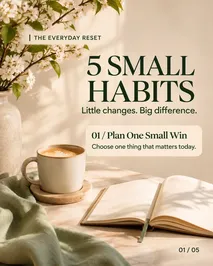
Open with a clear promise 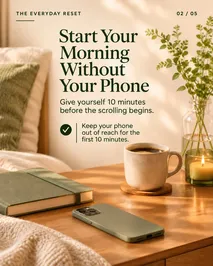
Give each frame one tip 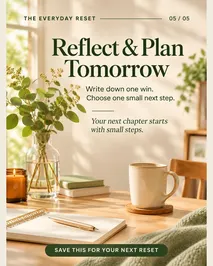
End with a next step


Start with a focused brief
Turn my checklist into an Instagram carousel. Use the first image to tell readers what they’ll learn. Give each tip its own image and keep the colors and layout consistent. End with a next step and give me the images in order.
Instagram post generator FAQ
What can I start with?
Start with a topic, a draft or a photo. Upload product images, a logo or style references if you want to use them, and include the audience, purpose, tone and accurate details to keep.
Can I start from an existing example?
Yes. Choose an example on this page and select Create similar to use it as a reference. Add your own topic, words and assets to the request.
Can I create a carousel with separate images?
Yes. Specify the total image count, the content for each image and the reading order. Ask for separate images, then check the content, crop and order before uploading them to Instagram.
What’s the difference between on-image text and a caption?
On-image text is the headline or copy inside the picture. A caption is the post text you add below the images when publishing. You can request both and specify the content and length separately.
Can I generate just a caption and hashtags?
Yes. Upload an image or describe the post and ask for a caption. Specify the tone, length, details to keep, and whether you want hashtags or emojis.
What can I change after generation?
Continue in chat to request changes to colors, backgrounds, on-image text or an individual carousel image. You can also shorten, rewrite or change the tone of a caption. Check any product or event details you need to keep after each revision.
Can I request a 1:1 or 4:5 image?
Include a target aspect ratio, such as 1:1 square or 4:5 portrait, in your request. Check the saved image dimensions and review the crop and text placement in Instagram before posting.
How do I publish the result on Instagram?
Save the images you want to use and copy the caption, then upload them in Instagram. For a carousel, select the images in reading order and review the preview before publishing.
Can I try it for free?
Yes. PagePop offers a free trial experience and gives new users credits when they sign up. Generating images uses your available credits. See the pricing page for current allowances and membership benefits. PagePop pricing and credits
Explore more AI tools
- AI ecommerce design
- AI posters
- AI flyers
- AI PPT
- YouTube thumbnails
- AI short dramas
- AI product videos
- AI interior design
Make your next Instagram post
Start with a topic or photo, generate images and a caption, then keep refining them in chat.